


Understanding Linux permissions might seem like a near-impossible task—what does 755 , 644, or u=rwx,g=rw,o=r mean, and what in the world is chmod drwxr-xr-x, anyway?—but it’s actually easier than you think. Let’s take a look.

Linux is a multi-user operating system that can be accessed by many users simultaneously. This might make you to think that a user can manipulate files and directories of another user, but all Linux operating systems protect filesystems under two levels of authorization—ownership and permission—to prevent unauthorized access to the filesystem in an effective and easy manner.
Note: The best way to master these permissions is to get your own Linux VPS server and learn by doing. The best part? We provide the best low-cost reliable VPS plans in the market!
Want an easy way to calculate Linux permissions? Check out our handy Chmod Calculator.
How to View File Permissions in Linux
To view file permissions in Linux, use the ls -l command. This displays the permission string, owner, group, and other file details:
$ ls -l
drwxr-xr-x  3 dd users   4096 Jun  10 08:01 Pictures
-rw-r--r--  1 dd users   2048 Jun  15 14:30 readme.txt
The ten-character string at the beginning shows the permissions. You can also view file permissions for a specific file:
$ ls -l filename
For a more detailed view showing permissions in both symbolic and numeric formats, use the stat command:
$ stat filenameHow do I find the permissions of a file?
Let’s try to find the permissions of files and directories. To find the permissions that is already assigned to files or directories, use ls command with -l switch.
$ ls -l
drwxr-xr-x  3 dd users   4096 Jun  10 08:01 Pictures
...
...
The first ten characters in the format drwxrwxrwx, represents the permissions for all the three classes of users. Let’s try to understand what each of these letters means. The first character, d, signifies that the file is a directory. This position can be blank(-) or any of the following characters:
c: Character device
b: Block device
s: socket
p: pipe
l: symbolic link etc.
Then the next three characters (drwxr-xr-x) represent the permissions that have been assigned to the owners of the file. The owner dd can read, write, and execute to the folder Pictures.
Moving on to the next three characters (drwxr-xr-x), which is r-x, represents the group permissions. The users from users group can access the file according to the group permissions, which specify they can read and execute in the directory but cannot write into it. The hyphen signifies that the permission is not granted.
The last three characters (drwxr-xr-x) represents the permissions for other groups who are neither the owner nor a member of the group users and the permissions are set to read and execute only.
The 11th character is a number that represents the number of hard links for the file and is not related to permission for a file. The two columns next to this number (drwxr-xr-x 3 dd users) represents the owner and group of the file.
To find the permissions for a particular file or directory, specify the name of the file in the ls command like below.
$ ls -l filenameOwners of files, directories, and processes
Before we try to explore who are the owners of files and directories, let’s get an overview of user types in Linux. In Linux, there are two types of users, system users and regular users. System users are created by the operating system itself and are used to manage background processes.
We generally create regular users to create and run processes interactively through a GUI or terminal. Besides these two types of users, there is a superuser by the name root, which has access to entire system to manage and override any settings in the system.
In Linux, the owners of the files, directories and processes will be assigned to these three types of users: regular, system, or root. Before we try to explore what permissions can be assigned to these three types of users, let’s try to understand the types of permission that are available in Linux.
What Linux permissions types are there?
There are two levels of permissions assigned to the files, directories, and processes in Linux. The first one is permission groups, which is otherwise referred to as the ownership. The second one is permission types, which can be read, write, or execute.
Permission groups
For every file and directory in Linux, there are the sets of users for whom we specify permissions. They are:
- Owners
- Groups
- Others

Owners: The user who creates a file, folder, or process is the owners.
Groups: Groups refers to anyone who is in the same group as the owner.
Others: Any user who is neither the owner of the file/directory and doesn’t belong to the same group is assigned to others group.
Permission types
What operations can each of the above three user groups can do is defined by permission types. There are three basic permission types that can be assigned to three groups of users and they are read (r) , write (w), and execute (x).
What do read, write and execute mean for files and directories ?
For files:
- Read is the ability to view the contents of a file.
- Write is the ability to edit or delete a file.
- Execute is the ability to run a file as an executable program.
For directories:
- Read is the ability to read the contents of a directory.
- Write is the ability to write into the directory, like creating files and sub-directories inside a directory.
- Execute is the ability to
cdinto the directory and to view the metadata of the files inside the directory usinglscommand.

Permissions in numeric notation
Two notations are used to represents the permissions for files and folders. The one that we already came about (r,w,x) is known as symbolic notation. The other one is numeric notation. In this notation, a number (0,1,2,4) represents a permission and are as follows:
- 0: No permission
- 1: Execute (x)
- 2: Write (w)
- 4: Read (r)
Now, how to calculate permissions for users and groups in numeric notation? Just add the permission’s value to get the value of user, group, and other permissions respectively.
For example:
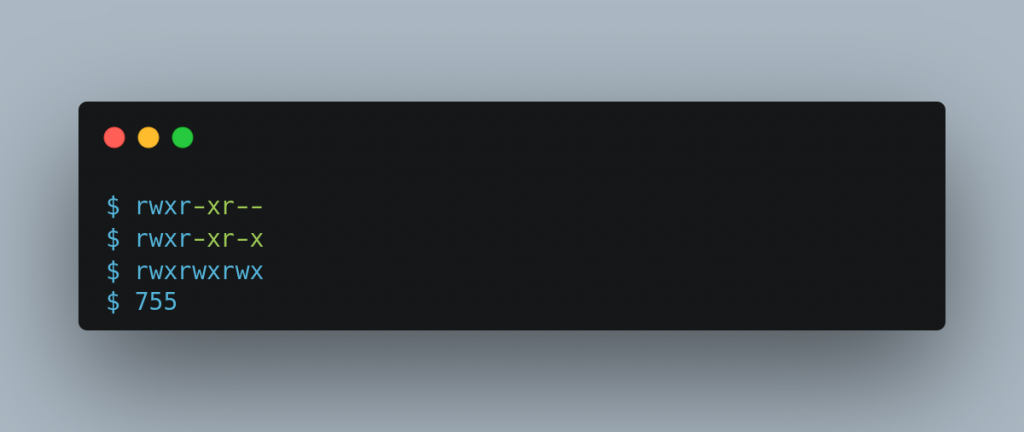
read(4), write(2) and execute(1) permission rwx translated to 7 (4+2+1)
read(4) and write(2) permission rw- translated to 6 (4+2)
write(2) and execute(1) permission -wx translated to 3 (2+1) etc.
Therefore the permission rwxrwxrwx is same as 777, rwxr-xr-x is same as 755, and so on.
Understanding 755 Permissions (chmod 755)

The chmod 755 command sets permissions to rwxr-xr-x, which is one of the most common permission patterns in Linux. Understanding chmod 755 meaning is essential: the owner gets full control (read, write, execute), while group members and others can read and execute but cannot modify the file.
When you run chmod 755 on a file or directory, you’re explicitly setting these three permission levels at once. This makes 755 permissions ideal for directories and executable scripts that should be accessible to all users but modifiable only by the owner.
Understanding 644 Permissions (chmod 644)

The chmod 644 command is the standard permission for regular files. When you set 644 permissions, the owner can read and write the file, while group members and others can only read it. This is the default permission for most text files, configuration files, and web content where you want everyone to view but only the owner to modify.
To apply 644 permissions to a file:
$ chmod 644 config.conf
This is commonly used for web server files like HTML pages, PHP scripts (that aren’t executable), and configuration files like .bashrc or nginx.conf.
Understanding 711 Permissions (chmod 711)
The chmod 711 command sets permissions where the owner has full control (rwx) while group members and others can only execute (traverse) the file or directory. When you apply 711 permissions, others cannot read or write, making this useful for directories where you want to hide the file listing but still allow access to specific files inside.
This permission pattern is particularly valuable for user home directories in multi-user environments. For example:
$ chmod 711 /home/username
With 711 permissions on a home directory, other users can access files like /home/username/public_html/index.html if they know the path, but they can’t run ls to see what files exist in your home directory.
Understanding 700 Permissions (chmod 700)
The chmod 700 command provides maximum privacy by granting full permissions (rwx) to the owner while completely blocking access for group members and others. When you set 700 permissions, only you can read, write, or execute the file or directory—everyone else is locked out entirely.
This is the required permission for sensitive directories like your SSH configuration:
$ chmod 700 ~/.ssh
Using chmod 700 is critical for security-sensitive locations. SSH will actually refuse to work if your .ssh directory has more permissive settings, as it could allow unauthorized users to access your private keys.
Understanding 600 Permissions (chmod 600)
The chmod 600 command restricts all access to the owner only, allowing read and write but no execute permission. When you apply 600 permissions to a file, group members and others cannot view, modify, or execute it. This is the standard security setting for private files containing sensitive data.
The most critical use of chmod 600 is for SSH private keys:
$ chmod 600 ~/.ssh/id_rsa
$ chmod 600 ~/.ssh/id_ed25519
SSH requires 600 permissions on private keys—if the permissions are more permissive, SSH will display an error like “UNPROTECTED PRIVATE KEY FILE” and refuse to use the key. This security measure prevents other users on the system from reading your authentication credentials.
Other common uses for 600 permissions include password files, API tokens, database credential files, and any configuration containing secrets.
Decoding drwxr-xr-x Permissions

The permission string drwxr-xr-x is one of the most common patterns you’ll see in Linux. Let’s break down what drwxr-xr-x means:
- d = This is a directory (not a file)
- rwx = Owner has read, write, and execute permissions
- r-x = Group has read and execute permissions (no write)
- r-x = Others have read and execute permissions (no write)
When you see drwxr-xr-x in your terminal output, it indicates a directory with 755 permissions. This is the standard permission for most directories on a Linux system. To set drwxr-xr-x permissions on a directory:
$ chmod 755 my-directory
$ ls -ld my-directory
drwxr-xr-x 2 username group 4096 Dec 20 10:00 my-directory
The drwxr-xr-x pattern allows the owner to create, delete, and rename files inside the directory, while other users can browse the directory contents and access files but cannot modify the directory structure itself.
Changing Linux permissions using chmod
Using the chmod command, one can add or remove permissions from a file or a directory. The letters u (owner/user), g (group) and o (other) are used to add or remove permissions for each of the three user types along with following three signs.
- the minus sign (
-), which means “remove these permissions” - the plus sign (
+), which means “add these permissions” - the equals sign (
=), which means “change the permissions to exactly these”.
Add permissions using chmod
To add permissions, use chmod command along with plus sign (+), which means “add these permissions”.
So if you want to add execute permission for all three types of users for a script file, use the following chmod command.
$ chmod +x hello.sh
         OR
$ chmod a+x hello.sh
// 'a' means all
To add execute permission for owner of the file only, use the following chmod command.
$ chmod u+x hello.sh
Similarly, you can use +r to add the read permissions, and +w to add the write permissions.
You may also assign permissions to users, groups and others or by combining them selectively. Just specify the classes of users (u, g, or o) and the permission (r, w, or x) that you want to assign. For example, the following chmod command will add execute and write permission to the owner of the file.
$ chmod u+xw hello.sh
To add write permission to both the owners and groups use the following command.
$ chmod ug+w hello.sh
You can also add permissions for multiple classes of users at one go. The following example will set read, write and execute permission for owner, and read and write permission for group and others.
$ chmod u=rwx,g=rw,o=rw example.txt
Remove permissions using chmod
In some situations, you may need to remove permissions rather than add them—whether you’re securing a file, restricting access after sharing, or fixing overly permissive settings. Just change + to - to remove permissions for any of the three classes of users.
Basic Permission Removal
# Remove write permission from group
$ chmod g-w readme.txt

# Remove execute permission from both owner and group
$ chmod ug-x script.sh

# Remove all permissions from group and others recursively
$ chmod -R go-rwx test_directory
The recursive example (-R) removes read, write, and execute permissions for groups and other users from test_directory including all files and subdirectories inside it.
Removing Multiple Permissions at Once
You can remove several permissions in a single command:
# Remove write and execute from others
$ chmod o-wx script.sh

# Remove all permissions from others
$ chmod o-rwx confidential.txt

# Remove read from group, write from others
$ chmod g-r,o-w shared-file.txt
Common Security Scenarios
Making files read-only for non-owners: Useful for configuration files that others should reference but not modify:
# Remove write permission from group and others
$ chmod go-w config.conf
# Result: -rw-r--r-- (644 permissions)
Securing uploaded files: When files are uploaded with overly permissive settings:
# Remove write from group/others, remove execute from all
$ chmod go-w,a-x /var/www/uploads/file.jpg
# Result: Files become 644 (rw-r--r--)
Locking down private directories: After creating a backup or archive:
# Remove all access for group and others
$ chmod -R go-rwx /backups/project-archive/
# Result: Only owner can access
Important Warnings
Directory execute permission: Removing execute permission from a directory prevents anyone from entering it, even if they have read/write:
$ chmod a-x my-directory/
$ cd my-directory/
bash: cd: my-directory/: Permission denied
Always keep execute permission on directories unless you specifically want to block access.
Recursive operations require caution: The -R flag affects everything inside a directory. Always verify your command before using recursive removal:
# CAREFUL: This locks out everyone from entire web directory
$ chmod -R go-rwx /var/www/html/  # Can break your website!

# Better: Target specific subdirectories
$ chmod -R go-rwx /var/www/html/private/
Combining Add and Remove
You can add and remove permissions in the same command:
# Add execute for owner, remove for group and others
$ chmod u+x,go-x script.sh

# Add read for owner, remove write for group
$ chmod u+r,g-w document.txt
Quick Verification
Always check permissions after removing them:
$ chmod go-w important.txt
$ ls -l important.txt
-rw-r--r-- 1 john users 2048 Dec 20 10:00 important.txt
Best practice: Remove permissions proactively using the principle of least privilege—it’s easier to add permissions back later than to fix a security breach caused by overly permissive files.
Changing Linux permissions using numeric notation
You can also set permissions using numeric notation instead of symbolic notation. Permissions set in this way use up to four digits. Now you may ask why 4 digits since there are only three classes of users for which you want to set the permissions. The first digits signifies value for set user id (4) OR set group id (2) OR sticky bit(1). The rest of the three digits are used for setting permission for three classes of users.
It is also possible to set permission using 3 digits only leaving the permission for user id, group id and stick bit unset. So the permission 0755 and 755 are the same.
$ chmod 755 hello.sh
// Sets all permission to owners and read/execute permission to group and others

$ chmod 0755 hello.sh
// Same as 755
Understanding these numeric commands is essential: chmod 755 gives full access to the owner and read/execute to others, chmod 644 makes files readable by all but writable only by the owner, chmod 700 creates a private directory, and chmod 600 protects sensitive files. Each chmod command directly translates to a specific rwx pattern.
Setting the drwxr-xr-x permission for a directory using chmod
Setting drwxr-xr-x permissions is a common task when managing directories. The drwxr-xr-x format appears frequently because it balances accessibility with security. Everyone can navigate the directory and read files, but only the owner can make changes.
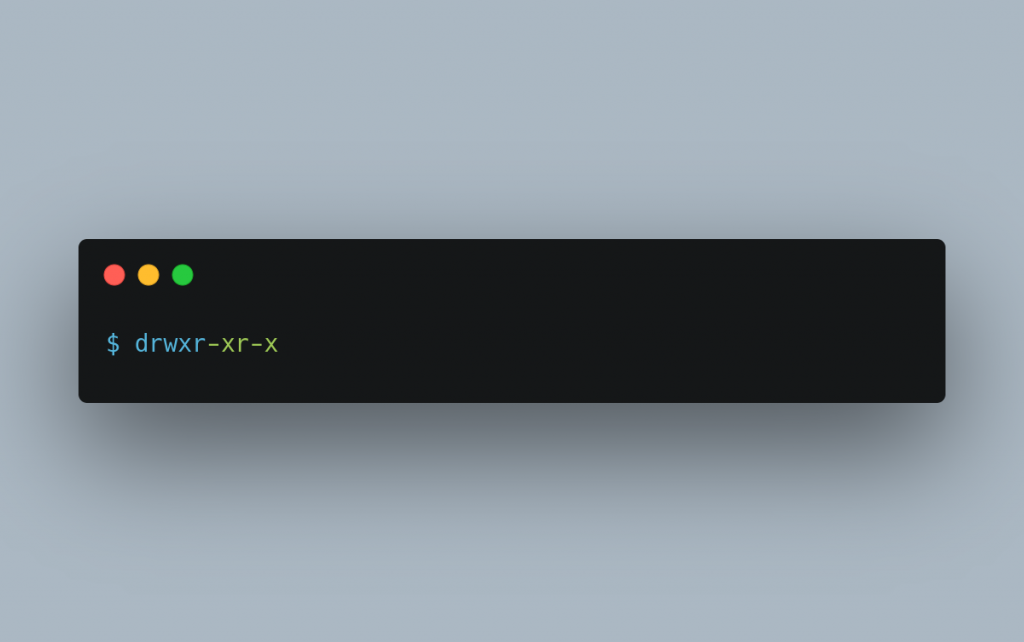
To set the drwxr-xr-x permissions to a directory, use the command chmod 755 directory_name.
What is chmod 755 ?
chmod 755 means granting the owner read, write, and execute permissions, while allowing the group and others to have read and execute permissions on the file.
Set user id
If a file with set user ID permission is set, then the file is executed as if by the owner of the file rather than the user who is executing the file. For example, /bin/mount is commonly owned by root and has permissions 4755 where the digit 4 signifies that, even if the file is executed by a normal user, it will run with the owner’s (root’s) privileges since the file is owned by root. The following example will show how to set the suid bit for a file.
$ chmod u+s hello.sh
        OR
$ chmod 4664 hello.sh

// Sets the suid bit of the file hello.sh

$ ls -l hello.sh
-rwSrw-r-- 1 peter peter 0 Jun 13 10:16 hello.sh

// The fourth character in the permission shows the suid bit is set.
// The capital 'S' signifies that executable bit is not set otherwise executable bit will be 's'
Set group id
SGID can be set to both files and directories and is represented symbolically by g and numerically by 2. When a directory has the sgid bit set, any files or directories created inside it will inherit the group ID of the directory. To set the sgid bit for a directory, use the following chmod command.
$ chmod g+s test_directory
          OR
$ chmod 2755 test_directory
Find if the sgid bit is set for the directory using the ls command.
$ ls -ld test_directory/
drwxrwsr-x 3 peter peter 4096 Jun 12 10:30 test_directory/
The seventh character in the group permission section ('s') signifies that the sgid bit is set for groups.
Sticky bit
The next access mode bit is called the sticky bit and is represented symbolically by t and numerically by 1. This bit works on directories only. With sticky bit set on a directory, anyone can create files or directories inside it. Files owned by other users cannot be deleted except his own files and directories.
To add a sticky bit to other types of users, use +t option in the chmod command.
$ chmod o+t some_directory
To test if the sticky bit is set for the directory use the ls command:
$ ls -ld some_directory
drwxrwxr-t 2 peter peter 4096 Jun 12 11:47 some_directory
There will be a t in the x bit section of other users. Also a lowercase t implies that the executable bit is also present, otherwise you would see a capital T
To remove the sticky bit use - sign in the chmod command:
$ chmod o-t some_directory
Using chown to change ownership
There may be situations when you need to change the ownership of files and directories. The chown command as described below changes the owner and groups of files and directories.
$ chown dd hello.sh
// changes the owner of the file only.
To change the group ownership, specify a colon or dot followed by group name right after owner name with no spaces between them, the group ownership of the files is changed as well.
$ chown dd:users hello.sh
             OR
$ chown dd.users hello.sh
If no group name is mentioned after colon or dot followed by OWNER, then the user is made the owner of the files and the group of the files is changed to owners login group.
$ chown dd. hello.sh
      OR
$ chown dd: hello.sh
If the owner name is omitted right before colon or dot and a group name is mentioned afterwards then the group ownership is changed. In this case, chown performs the same function as chgrp.
$ chown .users hello.sh
        OR
$ chown :users hello.sh
To change the owner and group of a directory recursively use -R switch:
$ chown -R dd:admin some_directory
Now that you have a basic idea of permissions in Linux and its usage through chmod and chown, you can now implement a proper permissions policy to secure your system.
How would you represent the Linux permissions rwxr-xr-- in octal notation?
To represent the Linux permissions rwxr-xr-- in octal notation, you can map each set of permissions to its corresponding octal value. rwx to 7, r-x to 5, r-- to 4. So, rwxr-xr-- in octal notation would be 754.
A note about tutorials: We encourage our users to try out tutorials, but they aren't fully supported by our team—we can't always provide support when things go wrong. Be sure to check which OS and version it was tested with before you proceed.
If you want a fully managed experience, with dedicated support for any application you might want to run, contact us for more information.