

Over the past few months, AI in the developer world has changed significantly. We're moving away from AI that simply assists, which worked a lot like a smart autocomplete, toward AI that actually gets things done on its own. Depending on the task, it can operate anywhere from a junior developer all the way up to a lead engineer.
This shift represents a fundamental move from simply helping you write lines of code to helping you actively build entire software systems.
I had used Cursor here and there for small, contained tasks inside the editor, mostly quick wins that kept me moving faster. But I realised I had never really tested what happens when you let an AI tool operate outside that tight, line-by-line feedback loop. That changed when I started experimenting with Claude Code, especially when used inside a Linux VPS.
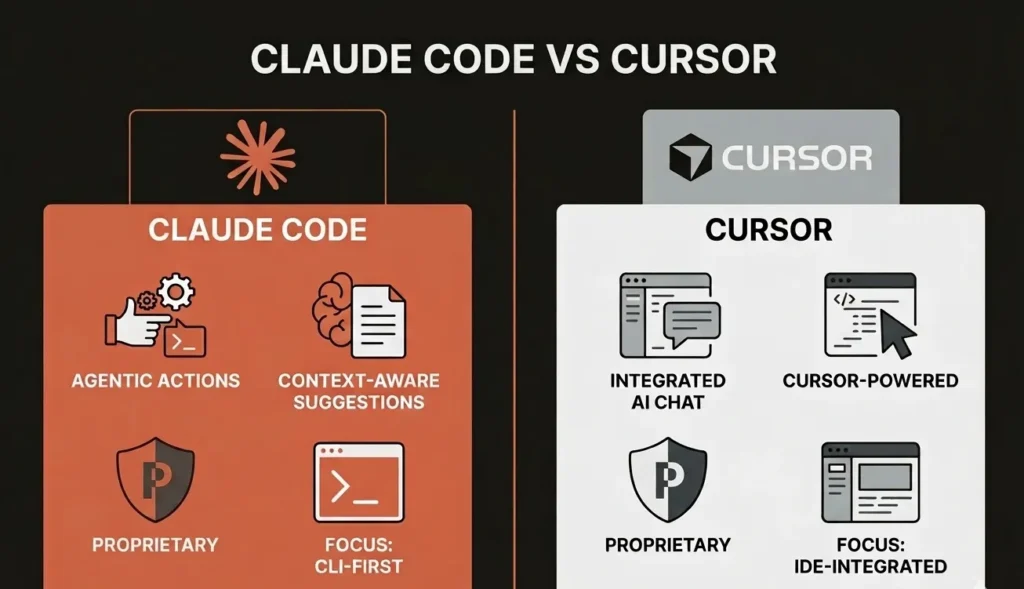
In this new landscape, Cursor and Claude Code have become two of the more prominent tools out there, and each one represents a pretty different take on how developers should work with AI.
In this article, I share my real-world experience using both to see how they actually affect a day-to-day development workflow.
Claude Code vs Cursor - Key Takeaways
Claude Code and Cursor are both strong AI tools for developers, but they work in pretty different ways. Cursor is built for speed and stays tightly integrated with your editor, so you can iterate quickly without breaking your flow. Claude Code leans more toward planning and autonomous execution, which makes it useful for understanding large codebases, coordinating changes across multiple files, and putting together structured implementation plans.
In practice, most developers end up using them for different things rather than picking one over the other. Cursor is great for inline edits, autocomplete, and UI tweaks directly inside the IDE. Claude Code tends to shine when you need to reason through architecture, get a clear explanation of a complex project, or run broader tasks from the terminal.
For a lot of developers, the sweet spot is using both together: Cursor for fast, in-editor work and Claude Code for higher-level planning and automation.
| Feature | Cursor | Claude Code |
|---|---|---|
| Workflow style | Editor-first | Plan-first |
| Best for | Fast edits & UI work | Multi-file reasoning |
| Interaction | Inline IDE tools | Terminal + planning |
| Strength | Speed & flow | Autonomy & architecture |
What is Claude Code
If Cursor is the cockpit, Claude Code is the engine room.
Claude Code is a CLI tool paired with a VS Code extension, and Anthropic has clearly built it with autonomy in mind. It does not just suggest code snippets. It runs commands, executes tests, and works directly in your terminal.
This represents a shift toward what many developers now call the agentic loop, where the AI can identify a problem, propose a solution, execute changes, and verify the results.
What is Cursor
Cursor is an AI-first code editor and coding agent. You describe what you want to build or change in natural language, and Cursor helps generate or modify the code.
Cursor isn’t simply a code editor with a plugin. It is a fork of VS Code rebuilt from the ground up to be AI-native. Instead of treating AI as a sidebar tool, Cursor indexes the entire codebase locally so the AI understands project structure, dependencies, and relationships between files.
This allows it to perform coordinated multi-file edits and contextual suggestions that feel less like autocomplete and more like working with a code-aware assistant embedded directly inside the editor.
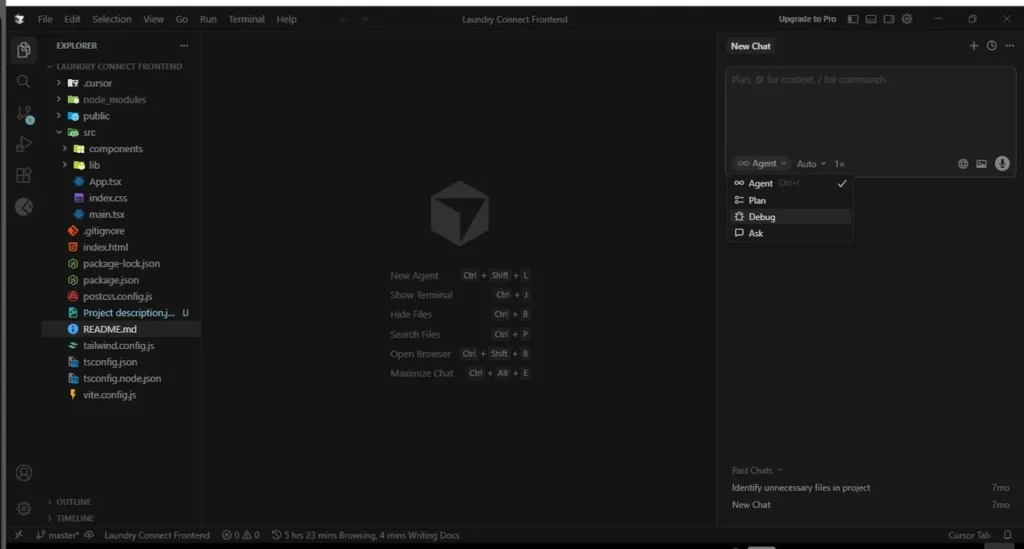
Feature Showdown
Rather than recreating the same feature twice in isolated demos, I tested both tools during real work on an existing frontend project: LaundryConnect. The goal wasn’t benchmarking or prompt engineering; it was to see how each tool behaved in a realistic development workflow.
Test setup
Most of the work in this project involved editing React components, adjusting UI layout, and modifying existing logic.
For this comparison, I kept the setup intentionally simple:
- Cursor was tested on the free plan (v2.4.28).
- Claude Code (v2.1.29) was used via the Anthropic CLI.
- Claude was authenticated using an API key.
Instead of running synthetic benchmarks, I stuck to real development tasks inside an existing codebase, things like tweaking components, iterating on UI, and implementing small features.
Both tools are evolving quickly, so this section isn’t an attempt to catalogue every capability. It’s simply a developer documenting how the tools behaved during real work.
Cursor: Staying in Flow While Editing Code
Most of my time in this project was spent inside existing components — adjusting props, renaming variables, and fixing layout issues.
This is where Cursor’s Tab model stood out immediately.
The Tab completions weren’t just autocomplete in the traditional sense. I could accept entire blocks of JSX or TypeScript logic by repeatedly hitting Tab, and Cursor often anticipated the next edit across multiple lines.
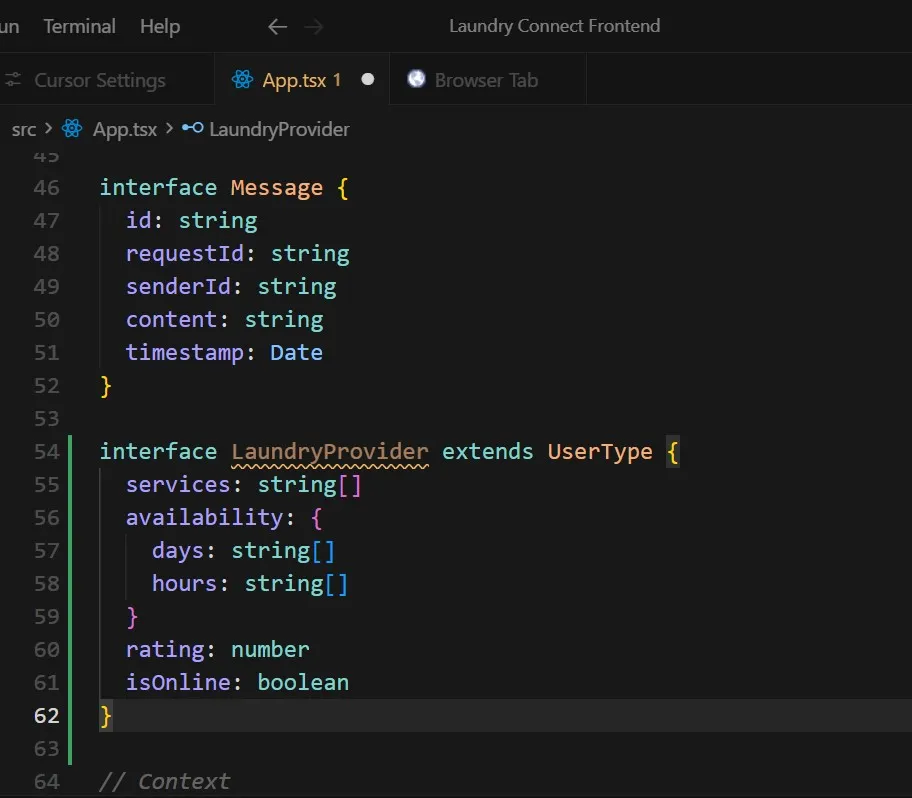
I rarely had to stop typing or rephrase a function or class
Inline Edit (Ctrl + K) felt like an extension of that flow. Instead of switching to a chat panel, I selected code in place, described the change, and reviewed a diff immediately.
For localised refactors, this kept me anchored in the file rather than stepping back into planning mode.
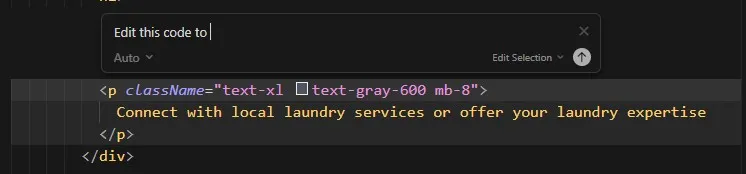
Cursor also supports more agent-like workflows through tools such as Composer, which can generate and coordinate larger multi-file changes. However, in practice, I found myself using Composer far less often than expected. Most of my interaction stayed close to the editor through features like Tab autocomplete, inline edits, and quick prompts.
Rather than delegating large tasks to an agent, Cursor felt most natural when guiding small incremental changes directly in the code.
UI Iteration Without Leaving the Editor
Cursor now includes a browser integrated directly inside the IDE.
This browser can be used either by agents in agent mode or directly by the developer during normal development.
Running the app inside the IDE meant I didn’t have to constantly switch between the editor and Chrome, and the CSS inspection tools felt closer to DevTools than a demo feature.
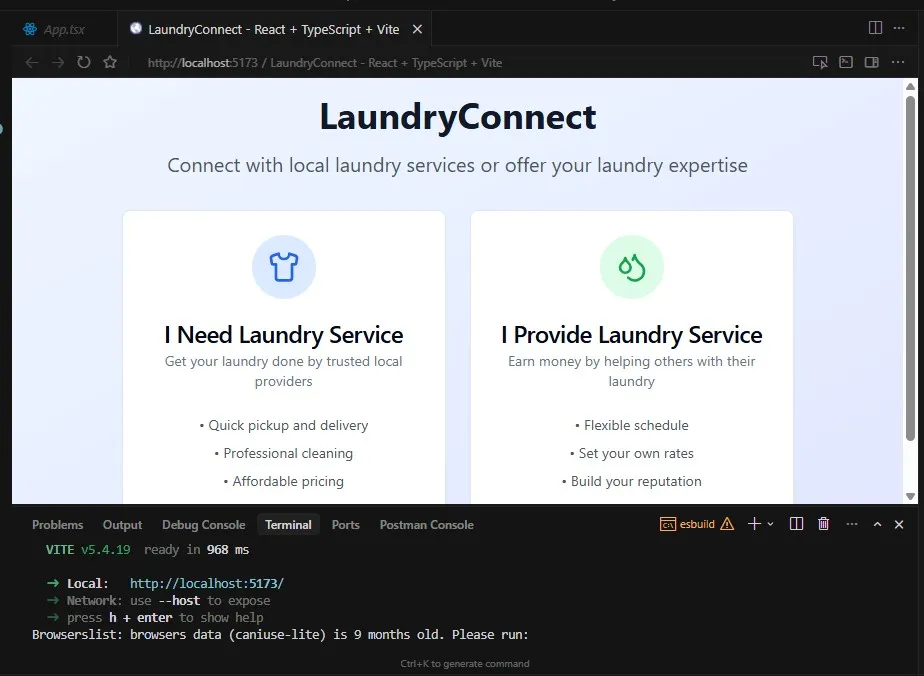
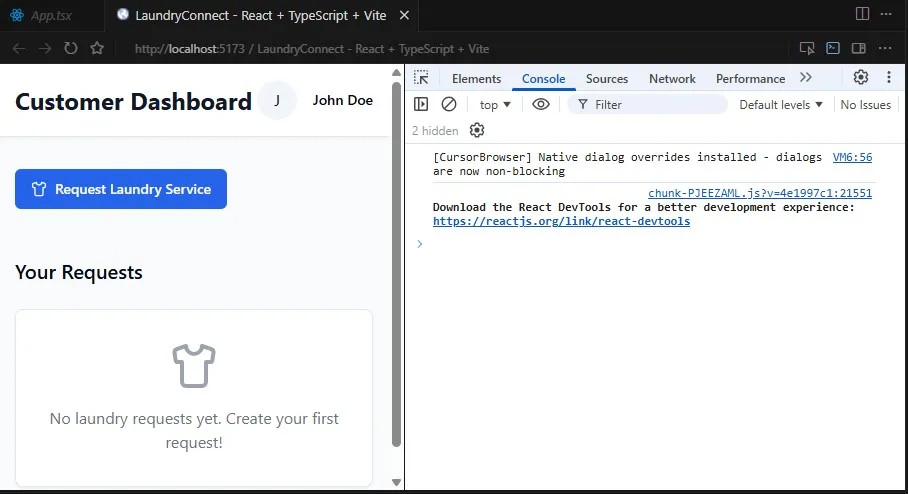
Inside this browser environment, the agent can access tools such as:
- Navigate
- Click
- Type
- Scroll
- Screenshot
- Console output
- Network traffic
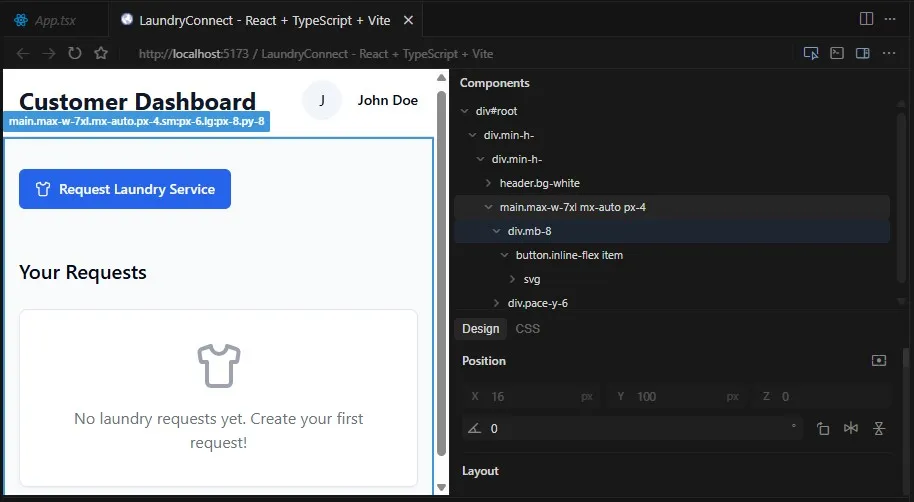
The Design Bar was the most surprising feature.
Making a visual adjustment and seeing Cursor propose a corresponding code change blurred the line between inspection and editing. For example, when I changed a button colour through the design interface, Cursor surfaced a prompt asking whether to apply the change directly to the codebase. When the change is accepted, an agent updates the underlying code automatically.
It felt like bringing a simplified version of Figma-style visual editing directly into the IDE. For layout tweaks and CSS adjustments, this removed a lot of trial and error.
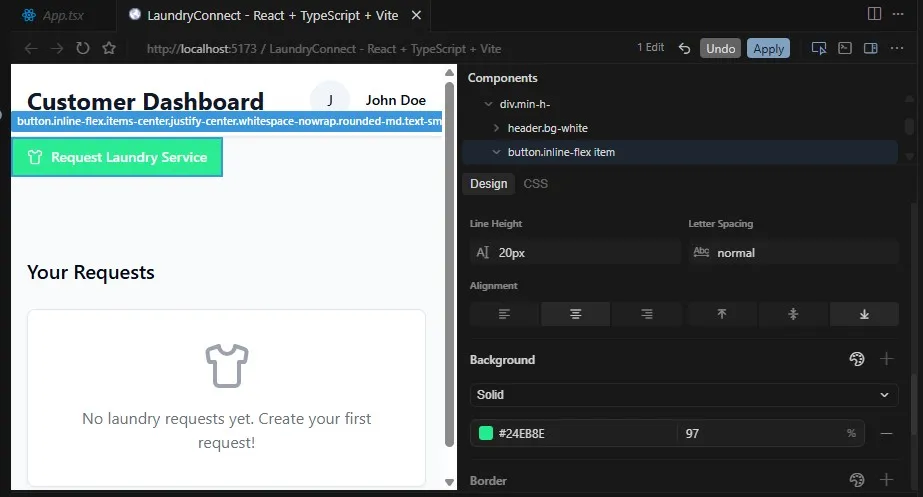
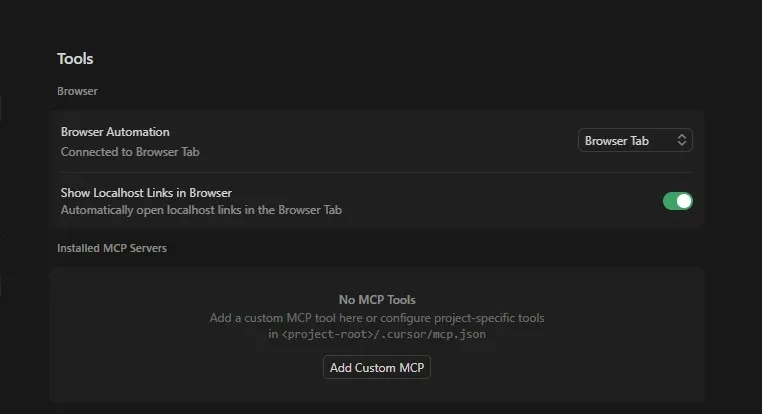
The browser window’s behaviour also changes depending on how it’s launched:
- inside the IDE via the Browser Tab
- or in an isolated Chrome process
Personally, I preferred the Browser Tab since it kept everything inside the editor.
Cursor also includes Shared Transcripts, which allow developers to share debugging sessions and AI conversations through a link containing messages, code snippets, and tool calls.
Claude Code: Planning and Executing Larger Changes
When a change required touching multiple files or reasoning about project architecture, my workflow shifted noticeably.
Instead of editing in place, I stepped back and described the outcome I wanted.
My Claude Code workflow typically looked like this:

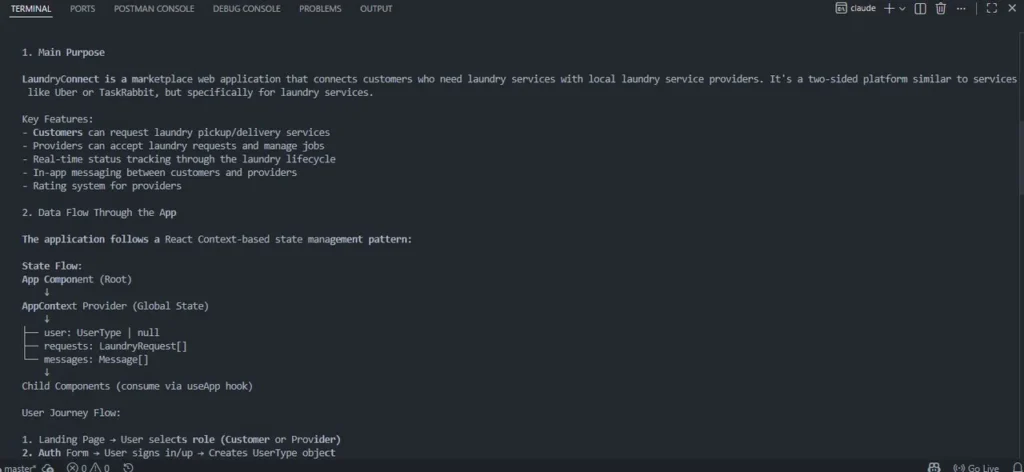
Step 1: Understanding the Codebase
Before implementing anything, I asked Claude Code to analyse the project:
Read  the  repository  and  explain:
1.  The  main  purpose  of  this  frontend  project
2.  How  data  flows  through  the  app
3.  The  key  folders  and  their  responsibilities
Do  not  suggest  changes  yet.  This  is  for  understanding  only.
Claude responded with a high-level explanation of the architecture, which helped establish a mental model of the codebase before making changes.
Step 2: Planning the Feature
Next, I asked it to plan the feature:
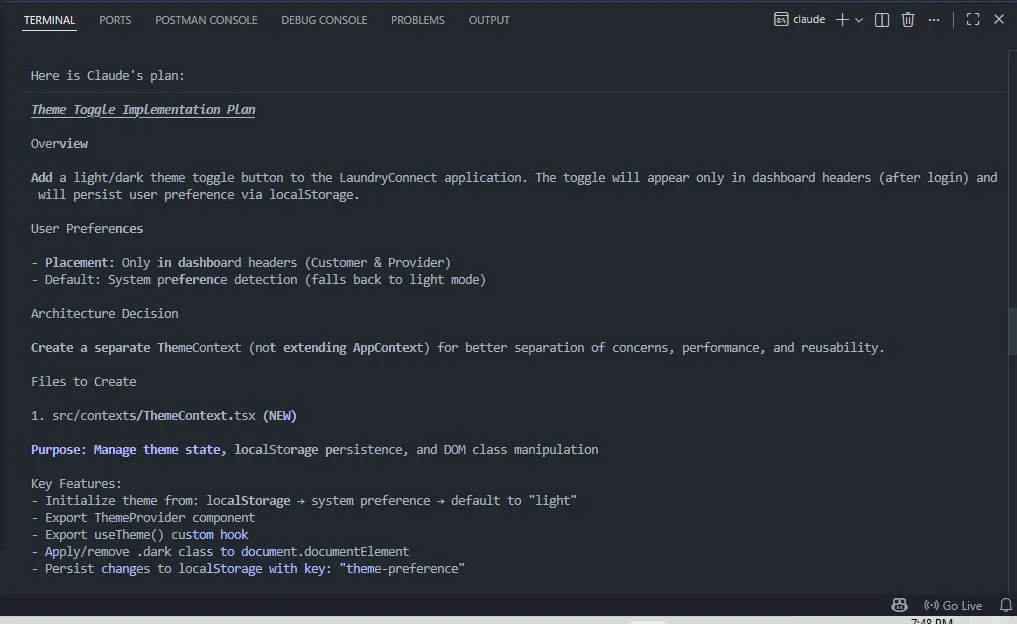
Add a light/dark theme toggle button to the LaundryConnect application. The toggle should appear only in dashboard headers (after login) and persist the user preference using localStorage. Before writing any code, propose a step-by-step plan. List the files you would touch and why.Claude Code produced a detailed architectural plan.
The plan outlined the architectural approach, files to create, files to modify, potential edge cases and a verification checklist
For example, it proposed creating a new context:
src/contexts/ThemeContext.tsxThis context would:
- manage theme state
- persist user preference in
localStorage - apply the
.darkclass to the root document - expose a
useTheme()hook
It then listed specific changes to make in App.tsx, including adding imports and integrating the toggle into dashboard headers.
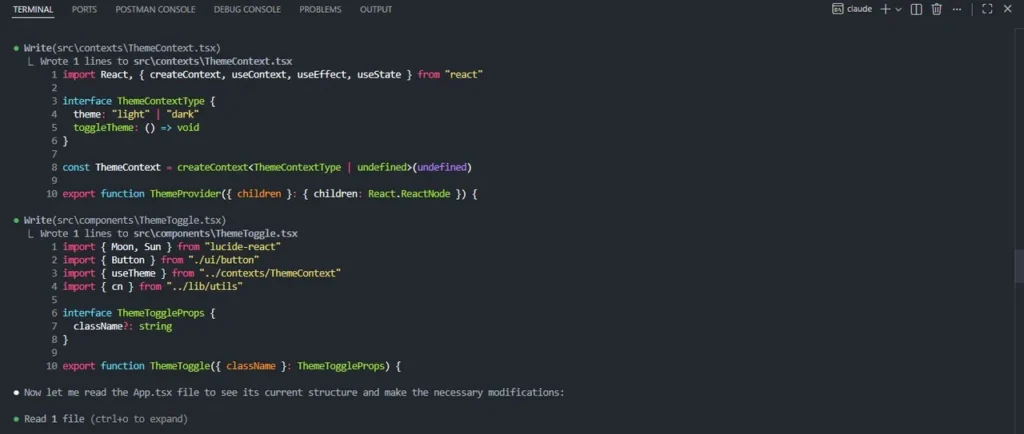
Step 3: Execution
After reviewing the plan, I approved the changes.
Claude then:
- created the new files
- updated existing ones
- executed commands in the terminal
- started the development server
This was the moment where Claude Code felt most agentic.
It wasn’t generating snippets — it was executing a planned sequence of changes..
Step 4: Verification
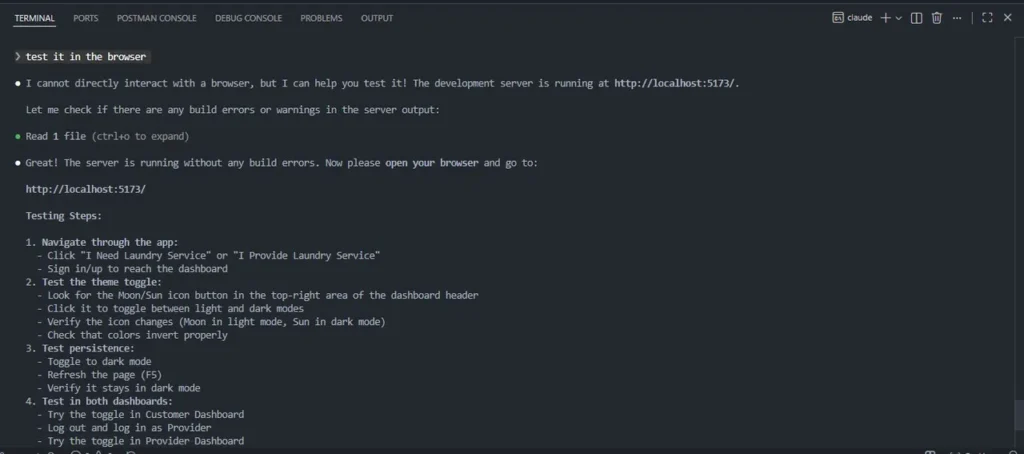
When I asked Claude to test the feature in the browser, it couldn’t directly interact with the UI.
Instead it:
- verified the server output
- confirmed the build succeeded
- provided a manual checklist for validating the feature visually
This was one moment where Cursor clearly felt stronger. Because Cursor’s integrated browser gives the agent visibility into the UI, it can validate visual changes more directly rather than relying only on logs and build output.
Claude Code’s Underlying Strengths
What stood out most wasn’t a single feature but a set of consistent capabilities.
When working on an existing codebase, Claude demonstrated strong codebase comprehension. It reasoned about dependencies, side effects, and architectural constraints before suggesting changes.
Another noticeable skill was self-correction. When a suggestion introduced edge cases or conflicted with the existing architecture, Claude could often detect the issue when asked to review its own output.
Over time, this made it feel less like an autocomplete engine and more like a collaborator that could reason about its own work.
Developer Experience (DX)
Planning, Autonomy, and Control
Cursor: Staying close to the code
Cursor’s workflow felt anchored in the editor rather than in long planning phases. Most interactions happened directly inside files through inline edits, autocomplete, and short prompts.
Instead of asking the agent to research or generate architectural plans first, Cursor encouraged quick iterations. I would often select a block of code, describe a change with Ctrl + K, review the diff, and move on. The feedback loop was immediate, making it feel closer to pair programming than to delegation.
Cursor does support more autonomous workflows through features like Composer, which can coordinate multi-file changes and generate implementation plans before editing files. In practice, however, I rarely relied on it during this comparison. Most of my interaction with Cursor stayed within the editor through Tab completions, inline edits, and small prompts.
That bias toward momentum and proximity to the code made Cursor feel most comfortable when making incremental changes or quickly exploring UI adjustments.
Claude Code: Planning-first autonomy
In planning-heavy tasks, Claude Code naturally defaulted to a plan-first approach, often outlining steps and trade-offs without being prompted.
Some developers are already building structured workflows around Claude Code. For example, in his article “How I Use Claude Code”, Boris Tane describes starting most tasks with a research phase where Claude analyses the codebase and produces a structured report. This is followed by a planning phase where the implementation steps are refined before execution.
The pattern he describes is essentially:
research → plan → annotate → implement.
Structured Workflows with Claude Skills
After noticing these patterns, I became curious whether the behaviour I was seeing was emergent or intentional. It turns out much of it is by design. The creators of Claude Code have shared a set of internal operating principles that guide how the agent plans, executes, and verifies work.
Reading through them felt less like a traditional feature list and more like a senior engineer’s playbook. Many of the ideas mapped closely to what I was seeing in practice while using the tool.
Some developers refer to these structured approaches as Claude Skills, essentially a way of giving the agent a consistent operating framework instead of treating every prompt as a fresh, one-off instruction.
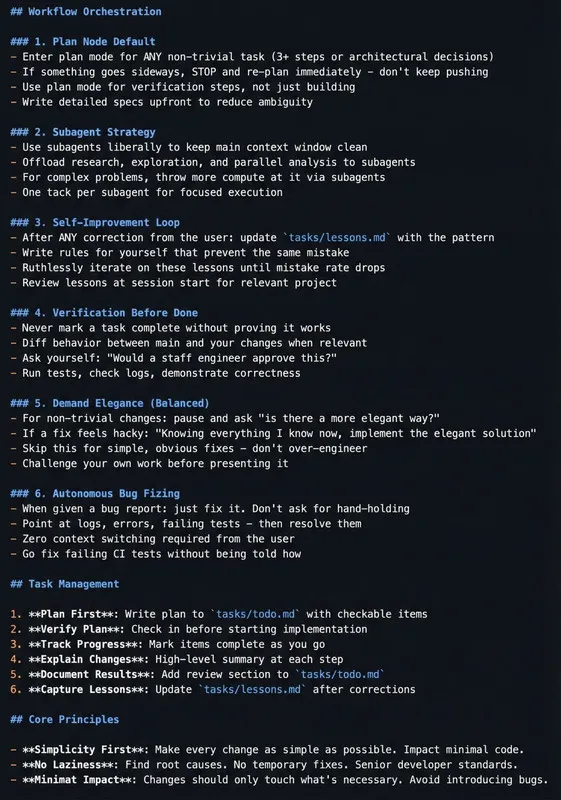
At a high level, these workflows tend to follow a few recurring ideas:
- Planning before writing any code for non-trivial tasks
- Using subagents to handle research or exploration, so the main context stays focused
- Verifying work before marking tasks complete
- Capturing lessons so the agent avoids repeating mistakes
What stood out about this model is that it treats Claude less like an autocomplete engine and more like a programmable collaborator. Instead of issuing isolated prompts, the developer defines a set of rules that shape how the agent approaches problems, plans changes, and validates its work.
This kind of structured loop helps explain why Claude Code often feels more comfortable handling larger, multi-step tasks.
Terminal Interaction and Workflow
Both Cursor and Claude Code offer a CLI experience, but they play different roles.
With Cursor, the terminal feels like an extension of the IDE workflow.
With Claude Code, the terminal becomes the place where you describe outcomes and delegate tasks.
Cursor’s CLI is optional and must be installed manually:
MacOS/Linux
curl https://cursor.com/install \-fsS | bash
Windows:
irm 'https://cursor.com/install?win32=true' | iex
The success image:

Then start an interactive session with:
agent
Cursor running in the Cursor IDE
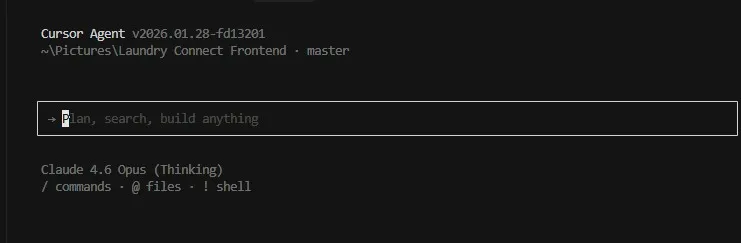
Then start it using the command agent.
In contrast, Claude Code’s terminal interface is foundational rather than optional.
Practical Workflow Differences
| Aspect | Cursor | Claude Code |
|---|---|---|
| Primary interaction | IDE-first editing | CLI + agent workflow |
| Reasoning style | Incremental | Plan-first |
| Typical usage | Small edits, navigation | Multi-file changes |
| Terminal role | Optional | Central |
| Code ownership | You control edits | You guide the agent |
| Visual feedback | Strong (browser tools) | Limited |
These differences reflect workflow posture, not capability limits.
Cursor keeps you close to the code.
Claude Code encourages you to step back and describe outcomes.
Feature Comparisons: Models and Code Review Tools
Choosing Models
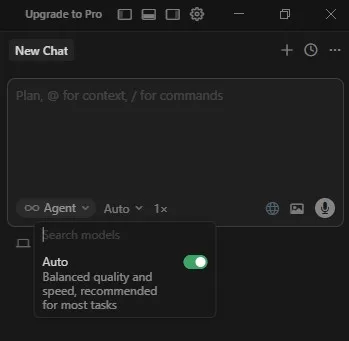
Cursor allows developers to run multiple frontier models inside the IDE, including Claude, GPT, Gemini, and Grok.
It also includes Auto Mode, which automatically selects the most reliable model based on task performance and system load.
Because I tested Cursor on the free plan, I was limited to Auto mode.
Claude Code takes a different approach. Instead of frequently switching models, the workflow revolves around choosing a model appropriate for reasoning depth.
In practice, I used:
- Claude Sonnet 4.5 for most development tasks
- Claude Opus 4.6 for deeper architectural reasoning
Agentic Model
Both tools support agentic workflows, but they surface them in different ways.
Cursor exposes agent-style workflows primarily through Composer, which can coordinate multi-file changes and generate implementation plans before making edits.
Claude Code exposes this through Plan Mode, where the model first proposes a structured implementation plan that the developer can review and approve before any code is written.
While testing Cursor, I mostly stayed inside the editor workflow and rarely relied on Composer. My interaction pattern was usually quick edits, inline prompts, and reviewing diffs directly inside files.
With Claude Code, Plan Mode became central to the workflow. The interaction pattern typically looked like:
- Describe the goal
- Review the generated plan
- Approve implementation
Automated Code Review
Cursor also includes Bugbot, an automated code review tool similar to CodeRabbit.
Bugbot runs asynchronously and reviews pull requests rather than assisting during live editing.
Because Bugbot isn’t available on the free plan, I wasn’t able to test it directly.
Pricing
Claude Code
Claude Code Pricing is included within Claude subscription tiers rather than being sold as a standalone product.
- Pro (individual) – $20/month: Claude Code is included within Claude subscription tiers rather than being sold as a standalone product.
- Max 5x – $100/user/month: Roughly five times the Pro usage. A better fit for regular development work on production codebases and medium-sized repositories.
- Max 20x – $200/user/month: Designed for heavy daily use, large refactors, and long-context workflows, with roughly twenty times the Pro usage.
- Team – $150/user/month(premium seat): Includes Claude Code access for teams, with a minimum of five members.
- Enterprise – Custom pricing: includes advanced security, governance, and organisation-level controls.
Cursor
Cursor can be used for free or through paid individual and team plans.
- Free Plan: Includes 2000 autocomplete completions (Tab feature) and 50 slow premium requests to supported LLMs via Auto mode.
- Pro Plan ($20/month): The entry-level paid plan. Includes unlimited Tab completions and $20 of API agent usage, plus additional bonus usage.
- Pro+ Plan ($60/month): Includes $70 of API agent usage along with additional bonus usage for heavier workflows.
- Ultra Plan ($200/month): Includes everything in the Pro plan, plus enforced privacy mode, centralised team billing, admin dashboard, and SAML/OIDC SSO.
What Ended Up Working Best for Me
After going back and forth between both tools for a while, I stopped thinking of them as competitors. They just naturally settled into different roles.
Cursor became where I stayed close to the code, making quick edits, jumping between files, and iterating on UI without breaking focus. Claude Code became the tool I reached for when I wanted to zoom out, handling multi-file changes, explaining parts of the codebase, or generating documentation.
Over time, a simple loop emerged: prototype in Cursor, commit, then hand off the broader tasks to Claude Code. That kept the editor fast and interactive while still getting the benefit of Claude's more autonomous reasoning.
In a lot of ways, this reflects two different approaches to AI-assisted development. Cursor is built around speed, proximity, and staying inside the editor. Claude Code is built around planning, delegation, and thinking at the architectural level. They do not replace each other; they actually complement each other quite well. For my workflow, using both ended up being more useful than committing to just one.