

Setting up AI-powered development tools on Linux doesn't have to be complicated. This guide shows you how to install Claude Code on Ubuntu Linux, bringing Anthropic's advanced AI coding capabilities directly to your terminal so you can work faster without constantly switching between tools.
We'll cover the npm installation method for Claude Code on Ubuntu, including Node.js setup, authentication configuration, VS Code integration, troubleshooting common errors, and optimizing your development environment for AI-assisted coding.
What is Claude Code CLI?
Claude Code CLI is Anthropic's command-line interface for AI-powered development. Unlike browser-based AI tools or IDE extensions that require constant context switching, Claude Code runs directly in your terminal alongside your existing development workflow.
The CLI provides programmatic access to Claude's coding capabilities through a conversational interface. You can request code generation, debugging assistance, architecture reviews, and refactoring suggestions without opening separate applications or copying code between tools.

Claude Code integrates with your project files automatically. When you run claude in a project directory, it analyzes your codebase structure, recognizes frameworks and technologies, and provides context-aware assistance. This tight integration makes it significantly more useful than generic AI chat interfaces for actual development work.
The tool supports all major programming languages and frameworks, with particular strength in web development, systems programming, and data science workflows. It handles everything from quick syntax questions to complex architectural decisions.
If you want an AI assistant that goes further than code, running 24/7 across WhatsApp, Telegram, and other messaging apps with full system access, OpenClaw VPS hosting is worth looking at. Just know it needs an isolated server environment because of how much system access it has.
How to Install Claude Code on Ubuntu Linux - Quick Setup
If you just want Claude Code up and running right now, here's the fastest path forward:
# First, install Node.js 20
curl -fsSL https://deb.nodesource.com/setup_20.x | sudo -E bash -
sudo apt install -y nodejs

# Install Claude Code globally
npm install -g @anthropic-ai/claude-code

# Configure your API key
claude config

# Start using it
claude
That's it - you're ready to start coding with AI assistance.
This quick install gets Claude Code running in under 2 minutes on any Ubuntu system.
Note: If you want to test this on a fresh VPS, SSD Nodes offers a 14-day money-back guarantee. Spin up a server, try Claude Code, and get a full refund if it's not for you.
In the sections below, we'll walk you through what each step does, show you how to troubleshoot common issues, and explore advanced configurations for VPS environments. You'll also learn how to integrate Claude Code with VS Code, automate workflows with the API, and optimize performance for remote development. Stick around to really master Claude Code on Ubuntu.
System Requirements for Ubuntu Linux
Before installing Claude Code on Ubuntu, verify your system meets these requirements.
Minimum Ubuntu Version
Claude Code CLI supports Ubuntu 20.04 LTS (Focal Fossa) and later versions. This includes Ubuntu 22.04 LTS (Jammy Jellyfish) and Ubuntu 24.04 LTS (Noble Numbat). The CLI works on both desktop and server installations, making it perfect for local development machines, remote VPS environments, and headless servers.
Earlier Ubuntu versions (18.04 and below) may encounter compatibility issues with Node.js dependencies and OpenSSL requirements. If you're running an older version, consider upgrading to a supported LTS release.
Hardware Requirements

Good news - Claude Code runs efficiently on pretty modest hardware:
- RAM: 4GB minimum, 8GB recommended for large projects
- Storage: 500MB for installation plus project workspace
- CPU: Any modern x86_64 processor (Intel or AMD)
- Network: Active internet connection for API requests
These requirements are easily met by most modern VPS plans. Even a basic 8GB RAM VPS from SSD Nodes provides comfortable headroom for Claude Code alongside your development stack, with enough resources left over for databases, web servers, and other development tools running simultaneously. For choosing the right VPS configuration, see our guide to best VPS hosting for developers.
Required Software Dependencies
The npm installation method requires Node.js 18 or newer. Ubuntu's default repositories may provide older versions, so you'll need NodeSource repositories for current releases.
Git is recommended but not strictly required. Claude Code works with version control systems but doesn't depend on them for core functionality. If you need to install Git on your system, see our tutorial on installing Git on Debian 12 (works for Ubuntu too).
Installing Claude Code on Ubuntu via npm
The npm installation is the most straightforward path if you're already using Node.js in your workflow. Let's walk through it.
Step 1: Install Node.js on Ubuntu
Ubuntu's default repositories contain outdated Node.js versions. Use NodeSource repositories for current releases:
# Add NodeSource repository for Node.js 20.x
curl -fsSL https://deb.nodesource.com/setup_20.x | sudo -E bash -

# Install Node.js and npm
sudo apt install -y nodejs

# Verify installation
node --version  # Should show v20.x.x or newer
npm --version   # Should show v10.x.x or newer
This installs both Node.js and npm package manager. The NodeSource repository ensures you get recent versions with security updates and compatibility improvements.
Step 2: Install Claude Code CLI via npm
With Node.js installed, add Claude Code globally:
# Install Claude Code CLI globally
npm install -g @anthropic-ai/claude-code

# Verify installation
claude --version
The -g flag installs Claude Code globally, making the claude command available system-wide. This installation goes into your npm global directory, typically ~/.npm-global or /usr/local/lib/node_modules depending on your npm configuration.
Critical security note: Never use sudo npm install -g for Claude Code or any user-level development tools. Running npm with sudo creates permission conflicts and security vulnerabilities in your home directory. If you encounter permission errors, fix your npm configuration rather than using sudo.
Step 3: Configure npm Permissions (If Needed)
If you see EACCES permission errors during global npm installs, configure npm to use a user-level directory:
# Create npm global directory in home folder
mkdir -p ~/.npm-global

# Configure npm to use new directory
npm config set prefix '~/.npm-global'

# Add npm bin directory to PATH
echo 'export PATH=~/.npm-global/bin:$PATH' >> ~/.bashrc
source ~/.bashrc

# Now install without sudo
npm install -g @anthropic-ai/claude-code
This setup ensures npm packages install to your home directory where you have proper permissions. The configuration persists across terminal sessions and npm updates.
Step 4: Verify npm Installation
Test your installation with these commands:
# Check Claude Code version
claude --version

# Run system diagnostics
claude doctor

# Test basic functionality
claude --help
The claude doctor command checks for common configuration issues, missing dependencies, and authentication problems. It provides actionable error messages if something needs attention.
Authenticating Claude Code on Linux
After installation, authenticate Claude Code with your Anthropic account to access API capabilities.
Setting Up Your Anthropic API Key
Generate an API key from the Anthropic Console:
- Visit console.anthropic.com
- Navigate to API Keys section
- Click "Create Key" and provide a descriptive name
- Copy the generated key immediately (it won't be shown again)
Store your API key securely - treat it like a password. Anyone with access to your key can make API requests on your account.
Interactive Claude Authentication
The simplest authentication method uses Claude Code's built-in configuration:
# Launch configuration wizard
claude config
This will prompt you to choose your terminal theme. And will give you two options of authentication:
Claude Code can be used with your Claude subscription or billed based on API usage through your Console account.
Select login method:
 ❯ 1. Claude account with subscription · Pro, Max, Team, or Enterprise

 2. Anthropic Console account · API usage billing
You can either use your Claude subscription or the Anthropic console for API usage billing.
Verifying Authentication
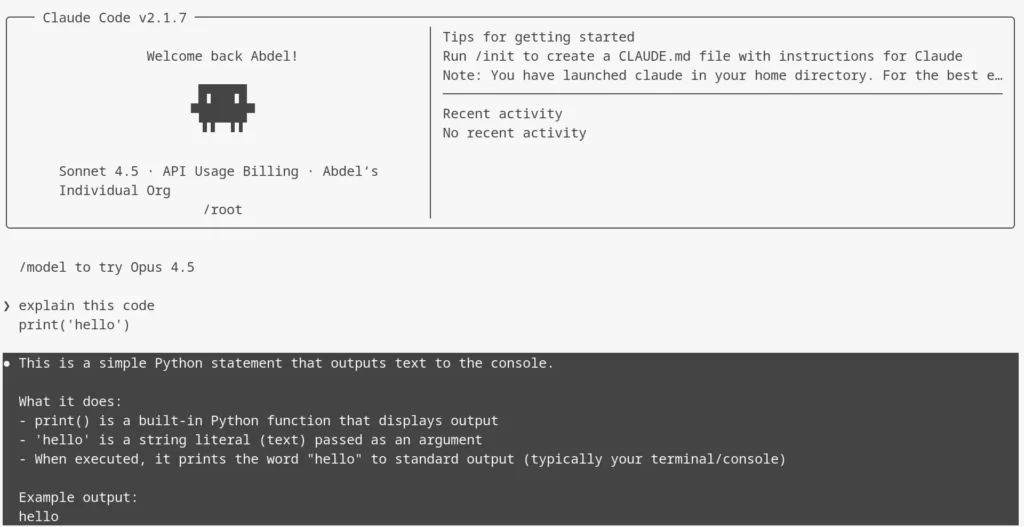
Test your authentication with these commands:
# Test with actual code assistance
echo "print('hello')" | claude "explain this code"
You should get a Claude response to your prompt:
Installing Claude Code in VS Code
While Claude Code CLI operates from the terminal, you can integrate it with Visual Studio Code for IDE-based workflows.
VS Code Extension Installation
Install the official Claude Code extension:
- Open VS Code on your Ubuntu system
- Press
Ctrl+Shift+Xto open Extensions panel - Search for "Claude Code"
- Click Install on the official Anthropic extension
- Reload VS Code when prompted
The extension connects to your existing Claude Code CLI installation and inherits authentication settings. You don't need separate API configuration.
Using Claude Code from VS Code Terminal
The most flexible approach uses Claude Code CLI directly in VS Code's integrated terminal:
- Open integrated terminal: In the navigation menu, go to Terminal > New Terminal
- Navigate to your project directory
- Run
claudeas you would in any terminal
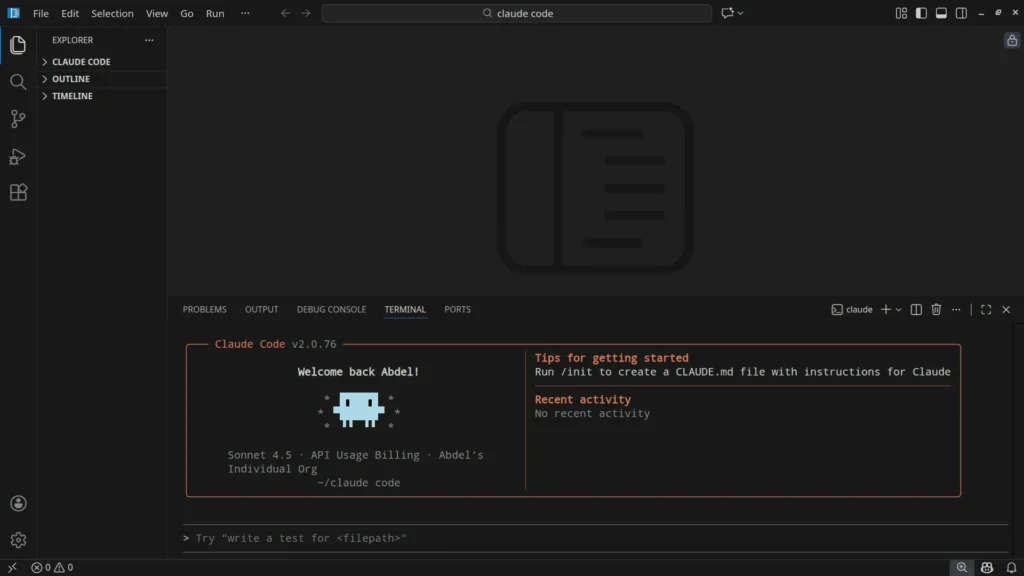
This gives you full CLI functionality while keeping everything in VS Code's interface.
You get syntax highlighting, file navigation, and all your usual IDE features alongside AI assistance.
Troubleshooting Common Installation Issues

Running into problems? Don't worry - most Claude Code installation issues come down to permissions, outdated dependencies, or authentication config. Let's fix them.
Permission Denied Errors
If you see "Permission denied" when installing via npm:
# Don't use sudo - fix npm permissions instead
mkdir -p ~/.npm-global
npm config set prefix '~/.npm-global'
echo 'export PATH=~/.npm-global/bin:$PATH' >> ~/.bashrc
source ~/.bashrc

# Reinstall Claude Code
npm install -g @anthropic-ai/claude-code
For native binary installations, ensure .local/bin is in your PATH and has execute permissions. For a deep dive into Linux file permissions, see our comprehensive guide to chmod 755, 644, and drwxrwxrwx:
# Check PATH contains .local/bin
echo $PATH | grep '.local/bin'

# If not, add it
echo 'export PATH="$HOME/.local/bin:$PATH"' >> ~/.bashrc
source ~/.bashrc

# Ensure binary is executable
chmod +x ~/.local/bin/claude
Node.js Version Conflicts
Ubuntu's default Node.js often causes issues. Use NodeSource for current versions:
# Remove old Node.js
sudo apt remove nodejs

# Clean npm cache
rm -rf ~/.npm

# Install from NodeSource
curl -fsSL https://deb.nodesource.com/setup_20.x | sudo -E bash -
sudo apt install -y nodejs

# Reinstall Claude Code
npm install -g @anthropic-ai/claude-code
Check your Node.js version regularly - Claude Code requires v18 or newer:
node --version # Must show v18.0.0 or higherClaude Code Error Editing File
The "error editing file" issue typically occurs when Claude Code lacks permissions to write to your project directory:
# Check directory permissions
ls -la /path/to/your/project

# Ensure you own the directory
sudo chown -R $USER:$USER /path/to/your/project

# Verify write permissions
touch /path/to/your/project/test.txt
rm /path/to/your/project/test.txt
If you're working in a shared directory or mounted filesystem, permission issues become more complex. Ensure your user account has write access to the entire project tree.
Missing Dependencies
Some Ubuntu installations lack required system libraries:
# Install common missing dependencies
sudo apt update
sudo apt install -y build-essential curl git

# For native binary on minimal systems
sudo apt install -y libc6

# Verify installations
gcc --version
curl --version
git --version
Docker containers or minimal Ubuntu installations often omit these tools. The build-essential package provides compilers and development tools Claude Code may need for certain operations.
Using Claude Code CLI for Development
Now that you've got Claude Code installed, let's explore what it can actually do for your development workflow.
Starting Your First Session
Let's get you started. Navigate to any project directory and launch Claude Code:
# Navigate to your project
cd ~/projects/my-application

# Start Claude Code
claude

# You'll see an interactive prompt
# Claude>
Claude Code analyzes your project structure, recognizes frameworks and languages, and loads context automatically. This happens silently in the background - you can start asking questions immediately.
Basic Code Assistance
Ask Claude Code about your project:
Claude> What does this project do?
Claude> Explain the folder structure
Claude> Where is the main entry point?
Claude> What frameworks are being used?
These queries help you understand unfamiliar codebases quickly. Claude Code reads your files and provides structured explanations of project architecture.
Code Generation
Generate code directly through conversation:
Claude> Create a function to validate email addresses
Claude> Write a REST API endpoint for user authentication
Claude> Generate unit tests for the UserService class
Claude Code creates files in your project directory after confirming changes with you. It follows your project's existing code style and conventions automatically.
Debugging Assistance
Get help identifying and fixing bugs:
Claude> This function throws a TypeError - why?
Claude> The authentication isn't working - check the login flow
Claude> Optimize this database query - it's too slow
Claude Code examines your code, identifies issues, and suggests fixes with explanations. It can also implement fixes directly when you approve them.
Git Integration
Claude Code also handles version control operations with Git and you can just prompt it and it will create the appropriate Git commands:
Claude> Commit these changes with a descriptive message
Claude> Create a new branch for the authentication feature
Claude> Show me what changed since last commit
Git operations run through Claude Code's conversational interface, making version control accessible even if you're not comfortable with git commands.
Claude Code vs Cursor: Feature Comparison
Developers often compare Claude Code CLI with Cursor, another AI-powered coding tool. Here's how they differ in architecture and use cases.
Architecture Differences
Claude Code is a pure command-line interface that operates in your terminal. It integrates with any text editor or IDE through standard terminal workflows. You edit files in your preferred editor, then consult Claude Code for assistance, code generation, or debugging.
Cursor is a fork of VS Code with AI capabilities built directly into the editor interface. The AI integration is tighter - Cursor suggests code as you type, provides inline completions, and handles refactoring through IDE commands.
The fundamental difference: Claude Code keeps AI assistance separate from your editing environment. Cursor merges them into a single interface.
Workflow Integration
Claude Code excels when you want AI assistance without changing your entire development environment. If you use Vim, Emacs, Sublime Text, or any other editor, Claude Code adds AI capabilities without requiring you to switch tools.
Cursor works best when you're willing to adopt it as your primary IDE. The tight integration provides smoother workflows for certain tasks, but requires committing to Cursor's environment.
For VPS development over SSH, Claude Code is usually the better choice. It runs entirely in the terminal, works perfectly over SSH connections, and doesn't require forwarding graphical applications.
Cost Comparison
Claude Code uses Anthropic's API pricing directly. You pay only for actual API requests at standard rates. No subscription fees, no artificial limits - just usage-based pricing.
Cursor offers subscription tiers with included compute time. The subscription model provides predictable costs but may be more expensive for light users or less cost-effective for heavy users compared to direct API access.
For development teams with multiple contributors, Claude Code's API model can scale more efficiently. Each developer uses their own API key with usage tracked individually.
Best Use Cases
Choose Claude Code when you:
- Already have a preferred editor or IDE
- Develop primarily over SSH or on remote VPS instances
- Want flexible AI integration with any toolchain
- Prefer command-line workflows
- Need fine-grained control over API usage and costs
Choose Cursor when you:
- Want an all-in-one AI-powered IDE
- Value tight integration between editor and AI
- Prefer graphical interfaces over terminal tools
- Don't mind switching your primary development environment
Using Claude Code with n8n Automation
Claude Code's API can integrate with workflow automation platforms like n8n for sophisticated development automation.
n8n Integration Basics
n8n is a workflow automation tool that can trigger Claude Code operations based on events, schedules, or webhooks. Running n8n on your VPS alongside Claude Code creates powerful automation possibilities.
Install n8n on your Ubuntu VPS following our complete n8n installation guide:
# Install n8n globally
npm install -g n8n

# Start n8n
n8n start

# Access at http://your-vps-ip:5678
Connect n8n to Claude Code through HTTP requests to Anthropic's API or by executing Claude Code CLI commands directly through n8n's Execute Command node. For more automation ideas, check out our guide on using n8n to automate VPS management.
Example: Automated Code Review
Create an n8n workflow that:
- Monitors your Git repository for new commits
- Extracts changed files from the commit
- Sends code to Claude Code API for review
- Posts review comments back to your Git platform
This provides continuous automated code review without manual intervention. The workflow runs entirely on your VPS, processing code as soon as developers push changes.
If you're running multiple VPS instances for different projects or clients, you can extend this pattern further. For instance, you could automatically spin up review environments on separate servers using the SSD Nodes VPS API ($2/month add-on), which lets you programmatically control server operations, deploy applications from 1-Click catalogs, and manage snapshots - all through the same n8n workflows that handle your code reviews. This creates a complete CI/CD pipeline that manages both code quality and infrastructure without leaving your automation platform.
Example: Documentation Generation
Automate documentation with this n8n workflow:
- Schedule runs daily or on commit
- Scan project for changed files
- Send code to Claude Code for documentation generation
- Commit generated docs to repository
Documentation stays current without developer effort. Claude Code analyzes code changes and updates corresponding documentation automatically.
Deployment Automation
Use n8n and Claude Code for smart deployments:
- Webhook trigger from CI/CD pipeline
- Claude Code analyzes deployment risks
- Conditional execution based on risk assessment
- Automatic rollback if issues detected
This adds intelligence to deployment pipelines, catching potential problems before they reach production.
For mission-critical deployments, consider taking VPS snapshots before deployment begins. If Claude Code identifies high-risk changes but you proceed anyway, having a snapshot means you can restore your entire server state in minutes if something goes wrong. Many VPS platforms automate daily snapshots, but triggering manual snapshots through n8n before risky deployments adds an extra safety layer without manual intervention.
Claude Code API Integration
Beyond the CLI, you can integrate Claude Code capabilities directly into applications through Anthropic's API. This approach works similarly to programmatic VPS control - see our guide on VPS API automation use cases for parallel concepts.
Direct API Access
Use Claude Code's underlying API for programmatic access:
# Example API call using curl
curl https://api.anthropic.com/v1/messages \
  -H "content-type: application/json" \
  -H "x-api-key: $ANTHROPIC_API_KEY" \
  -H "anthropic-version: 2023-06-01" \
  -d '{
    "model": "claude-sonnet-4-20250514",
    "max_tokens": 4096,
    "messages": [
      {"role": "user", "content": "Explain this code: print(\"hello\")"}
    ]
  }'
This returns JSON responses you can parse programmatically, making it easy to build custom tools that leverage Claude's capabilities.
Python Integration
Integrate Claude Code into Python applications:
import anthropic

client = anthropic.Anthropic(
    api_key="your-api-key"
)

message = client.messages.create(
    model="claude-sonnet-4-20250514",
    max_tokens=4096,
    messages=[
        {"role": "user", "content": "Generate a Python function for Fibonacci"}
    ]
)

print(message.content)
The official Python SDK handles authentication, retries, and error handling automatically. Install with pip install anthropic.
JavaScript Integration
For Node.js applications:
import Anthropic from '@anthropic-ai/sdk';

const client = new Anthropic({
  apiKey: process.env.ANTHROPIC_API_KEY,
});

const message = await client.messages.create({
  model: 'claude-sonnet-4-20250514',
  max_tokens: 4096,
  messages: [
    {role: 'user', content: 'Write JavaScript code for user authentication'}
  ],
});

console.log(message.content);
Install the SDK with npm install @anthropic-ai/sdk. This provides TypeScript type definitions and handles streaming responses.
Understanding Claude Code Usage Limits
Claude Code usage is subject to rate limits and quotas that vary by subscription tier.
When Does Claude Code Usage Reset?
API usage resets monthly on your billing cycle date. If you signed up on the 15th, usage resets on the 15th of each month at 00:00 UTC.
Free tier accounts have lower limits that reset daily at 00:00 UTC. Paid accounts get higher limits with monthly resets.
Check your current usage through the Anthropic Console dashboard. It shows tokens used, requests made, and when your limit resets.
Rate Limits
Claude Code enforces these rate limits:
- Free tier: 50 requests per day
- Build tier ($20/month): 1,000 requests per day
- Scale tier: Custom limits based on needs
Rate limits prevent abuse but rarely affect normal development workflows. Each conversation with Claude Code typically uses 1-5 requests depending on complexity.
If you hit rate limits, responses include retry-after headers indicating when to try again. The Claude Code CLI automatically handles rate limiting with exponential backoff.
Token Limits
Each API request consumes tokens based on input (your code and questions) plus output (Claude's responses):
- Input tokens: Count words in your prompts and code
- Output tokens: Count words in Claude's responses
- Context tokens: Include conversation history
Claude Sonnet 4.5 supports 200K token context windows. This fits most source files entirely, enabling Claude to understand your complete codebase structure.
Large files or extensive conversations consume more tokens. Monitor usage in the Console to understand your consumption patterns.
Performance Optimization Tips
Optimize Claude Code for faster responses and more efficient resource usage on your VPS.
Reducing Startup Time
Native binary installations start faster than npm versions. The binary loads in milliseconds while Node.js runtime adds overhead.
For scripts that invoke Claude Code repeatedly, consider keeping a persistent session open rather than starting new processes each time.
Managing Context Window
Claude Code loads project files into its context window. Large projects or binary files can consume significant tokens.
Use .claudeignore files to exclude irrelevant directories:
# Create .claudeignore in project root
cat > .claudeignore << 'EOF'
node_modules/
.git/
dist/
build/
*.log
.env
EOF
This prevents Claude Code from analyzing dependency directories, build artifacts, and other files that don't need AI attention.
Caching Strategies
Claude Code implements automatic caching for repeated queries against the same codebase. When you ask multiple questions about the same files, subsequent responses return faster.
Keep terminal sessions open between related queries to take advantage of caching. Starting fresh sessions loses cache benefits.
Network Optimization
API requests to Anthropic's servers introduce latency. For VPS deployments, choose data center locations near Anthropic's infrastructure:
- US East Coast: Lowest latency to Anthropic's primary regions
- Europe: Acceptable latency for most use cases
- Asia Pacific: Higher latency but still usable
When selecting VPS locations for development work with Claude Code, consider both your geographic proximity and Anthropic's infrastructure. Having servers in multiple locations lets you test performance from different regions - useful if you're building applications for a global audience. With 14 data center locations worldwide, you can place development servers close to where your code will ultimately run while keeping response times reasonable for Claude Code API calls.
Security Best Practices
Let's make sure your Claude Code installation and API credentials are locked down tight. For comprehensive VPS security guidance, see our critical steps to secure VPS servers.
API Key Management
Never commit API keys to version control. Use environment variables or secure configuration files with restricted permissions:
# Secure config file permissions
chmod 600 ~/.claude/config.json

# Verify no one else can read it
ls -la ~/.claude/config.json

# Should show: -rw------- (owner read/write only)
For shared development servers, use per-user API keys rather than shared credentials. This provides audit trails and limits damage if one account is compromised.
Code Review Before Execution
Claude Code can generate and execute code directly. Always review generated code before running it:
Claude> Show me the code before executing it
Claude> Explain what this change does
Claude Code asks for confirmation before modifying files or executing commands. Never disable these safety prompts unless you really know what you're doing.
Network Security
When running Claude Code on VPS instances, you should absolutely secure your server, here are a few quick things you can do:
# Ensure SSH uses key authentication
sudo nano /etc/ssh/sshd_config
# Set: PasswordAuthentication no
# Set: PubkeyAuthentication yes

# Restart SSH service
sudo systemctl restart sshd

# Configure firewall
sudo ufw allow 22/tcp
sudo ufw enable
API credentials transmitted to Anthropic use HTTPS encryption, but local security on your VPS matters equally. SSH key authentication is critical - password-based logins create vulnerabilities that automated attacks exploit within hours of server deployment.
If you're new to VPS security or encounter issues during SSH configuration, SSD Nodes offers 24/7 support to help with security hardening and initial server setup. This prevents lockouts when modifying authentication settings - a common problem that can leave you unable to access your server if SSH configuration goes wrong.
Comparing AI Coding Tools
Claude Code competes in a crowded market of AI-assisted development tools. Here's how it stacks up against alternatives.
GPT-5 vs Claude Code
OpenAI's models (GPT-4, potential GPT-5) offer strong code generation but differ in several ways:
Context Window: Claude Sonnet 4.5 provides 200K token context, significantly more than GPT-4's limits. This allows Claude Code to analyze larger codebases without truncation.
Code Understanding: Claude excels at explaining existing code and understanding architectural patterns. GPT models sometimes focus more on generation than comprehension.
Pricing: Claude Code uses straightforward API pricing. OpenAI charges differently for GPT-3.5, GPT-4, and future models, with varying capabilities at each tier.
Availability: Claude Code runs anywhere with internet access. OpenAI's tools sometimes face regional restrictions or capacity limitations.
Gemini CLI vs Claude Code
Google's Gemini provides CLI access similar to Claude Code:
Integration: Gemini CLI uses Google Cloud infrastructure. If you're already on GCP, integration is seamless. Claude Code works well with any cloud provider.
Multimodal Support: Gemini handles images, audio, and video alongside code. Claude Code focuses primarily on text and code, with some image understanding capability.
Ecosystem: Claude Code integrates well with Anthropic's broader tools. Gemini connects to Google's extensive AI ecosystem including Vertex AI and Google Cloud services.
Performance: Both offer strong code generation. Claude often provides more detailed explanations and better understands nuanced requirements.
Real-World Use Cases
Let's look at how developers are actually using Claude Code in their day-to-day work.
Full-Stack Development
A web development agency uses Claude Code for rapid prototyping:
# Generate Express.js API
cd ~/projects/new-api
claude "Create an Express server with authentication and user CRUD endpoints"

# Review generated code
cat server.js

# Generate frontend
claude "Create a React component for user management that calls these APIs"

# Run and test
npm install
npm start
This workflow delivers working prototypes in minutes rather than hours. The agency iterates quickly with clients, gathering feedback before investing in full development. Understanding these development workflows becomes easier with our beginner's guide to DevOps terminology.
DevOps Automation
A systems administrator automates infrastructure tasks with Claude Code alongside other tools for managing multiple Linux servers:
# Generate Ansible playbook
claude "Write an Ansible playbook to deploy Nginx with SSL certificates"

# Review and customize
nano nginx-playbook.yml

# Generate Terraform config
claude "Create Terraform configuration for a 3-node Kubernetes cluster"
Claude Code handles boilerplate infrastructure-as-code, letting administrators focus on business-specific requirements. For structured automation workflows, consider our step-by-step Ansible guide.
Database Migration
A data engineer needs to migrate schemas between database systems:
# Analyze existing schema
claude "Explain this PostgreSQL schema" < schema.sql

# Generate migration
claude "Convert this PostgreSQL schema to MySQL compatible SQL" < schema.sql > mysql-schema.sql

# Create data migration
claude "Write Python script to migrate data from PostgreSQL to MySQL"
Claude Code understands database differences and generates appropriate migration code with error handling.
For testing migrations safely, spinning up isolated database servers takes seconds with pre-configured environments. Rather than manually installing MySQL, PostgreSQL, or other database systems, using SSD Nodes' 1-Click application deployment gets you from empty VPS to running database in under 5 minutes. This lets you test Claude Code's generated migration scripts against fresh database installations that match your production environment exactly.
API Integration
Developers building third-party integrations use Claude Code for API clients:
# Generate API client from documentation
cat api-docs.md | claude "Create a Python client library for this API"

# Add error handling
claude "Add retry logic and rate limiting to this API client"

# Generate tests
claude "Write pytest tests for all API client methods"
This approach speeds up integration projects, reducing time spent on repetitive API client code.
Troubleshooting Advanced Issues
Beyond basic installation problems, you might encounter these complex scenarios.
Memory Usage Problems
Claude Code maintains conversation history and file context in memory. Long sessions or large projects can consume significant RAM:
# Check Claude Code memory usage
ps aux | grep claude

# Restart session to clear context
# Exit and restart claude
For extremely large projects (>100MB of code), use .claudeignore to exclude non-essential files. Focus Claude Code on the specific modules you're working with.
Concurrent Session Conflicts
Multiple Claude Code sessions in different terminals can conflict:
# List running Claude sessions
ps aux | grep claude

# Kill specific session
kill <pid>

# Or kill all Claude processes
pkill claude
Claude Code uses lock files to prevent conflicts, but crashes or forced terminations can leave stale locks. Check ~/.claude/.lock and remove it if no Claude processes are actually running.
Keeping Claude Code Updated
Regular updates provide bug fixes, new features, and improved AI models.
Automatic Updates (npm)
npm-installed Claude Code checks for updates automatically:
# Check current version
claude --version

# Update to latest version
npm update -g @anthropic-ai/claude-code

# Verify update succeeded
claude --version
Updates apply globally and affect all users on the system. In multi-user environments, coordinate updates to avoid disrupting other developers.
Getting Help and Support
Stuck on something not covered here? You've got several places to turn for help.
Official Documentation
Anthropic maintains comprehensive Claude Code documentation at docs.anthropic.com. The docs cover API details, authentication, model capabilities, and integration examples.
The documentation includes cookbook examples for common use cases, API reference details, and troubleshooting guides.
Community Resources
The Claude Code community provides peer support:
- Anthropic Discord: Active community discussion
- GitHub Issues: Bug reports and feature requests
- Stack Overflow: Tagged questions about Claude Code integration
Search existing issues and discussions before posting new questions - someone may have already solved your problem.
Conclusion
You've now got Claude Code running on Ubuntu Linux with AI assistance right in your terminal. The npm installation takes just minutes, and you're ready to start building.
When you're choosing where to run Claude Code, look for straightforward pricing with no bandwidth overages or unexpected charges. SSD Nodes locks in your rate from day one, so your monthly bill stays predictable while you focus on writing code.
Start simple. Test Claude Code on your current projects, then explore the API integration and automation features as you get comfortable. The tool works like a conversation, not a complicated system you need to master before it's useful.
For remote development work, Claude Code eliminates the usual friction of SSH sessions and context switching. Everything stays in your terminal where it belongs.
Frequently Asked Questions
How do I install Claude Code on Ubuntu?
Install Claude Code on Ubuntu using either npm (npm install -g @anthropic-ai/claude-code) or the native binary installer (curl -fsSL https://claude.ai/install.sh | bash). Both methods require Ubuntu 20.04 or newer. The npm method needs Node.js 18+, while the native binary has no Node.js dependency. After installation, authenticate with your Anthropic API key using claude config.
Can I use Claude Code without installing Node.js on Linux?
Yes, the native binary installation doesn't require Node.js. Download the installer script with curl -fsSL https://claude.ai/install.sh | bash and it installs a standalone binary in ~/.local/bin/claude. This method works perfectly on minimal Ubuntu installations, Docker containers, or any environment where you prefer to avoid npm and Node.js overhead.
How do I fix "error editing file" in Claude Code?
The "error editing file" issue happens when Claude Code lacks permissions to write to your project directory. Fix it by ensuring your user owns the directory (sudo chown -R $USER:$USER /path/to/project) and has write permissions (chmod -R u+w /path/to/project). If working on mounted filesystems or shared directories, verify your user account has appropriate access rights.
What's the difference between Claude Code and Cursor?
Claude Code is a command-line tool that works with any text editor and runs in your terminal. Cursor is a complete IDE (VS Code fork) with AI built directly into the interface. Claude Code excels for terminal-based workflows, SSH development, and integration with existing tools. Cursor provides tighter AI integration within a graphical IDE environment. Choose Claude Code for flexibility and terminal workflows, or Cursor for all-in-one IDE experience.
How do I integrate Claude Code with VS Code?
Install the official Claude Code extension from the VS Code marketplace. The extension connects to your existing Claude Code CLI installation and uses the same API authentication. Alternatively, use Claude Code directly in VS Code's integrated terminal (Ctrl+`) without any extension - this provides full CLI functionality within the IDE interface.
Can I use Claude Code in n8n workflows?
Yes, integrate Claude Code with n8n using either the Execute Command node to run CLI commands or HTTP Request nodes to call Anthropic's API directly. This enables workflow automation like automatic code reviews on commits, scheduled documentation generation, or intelligent deployment validation. Both n8n and Claude Code run perfectly on Ubuntu VPS instances.
When does Claude Code usage reset?
Claude Code usage resets monthly on your billing cycle date (for paid accounts) or daily at 00:00 UTC (for free tier accounts). Check your current usage and reset date in the Anthropic Console dashboard. Usage includes both API requests and token consumption from code analysis and generation tasks.
How does Claude Code compare to GPT-5 for coding?
Claude Sonnet 4.5 offers 200K token context windows (larger than GPT-4), strong code understanding alongside generation, and straightforward API pricing. GPT models excel at raw generation speed but may provide less detailed explanations. Claude Code integrates naturally with any development environment, while GPT-based tools often require specific IDE integration. Both are capable - choose based on context window needs, pricing preferences, and existing ecosystem integration.
Which is better: Gemini CLI or Claude Code?
Claude Code provides deeper code explanations and better understands architectural patterns. Gemini CLI offers multimodal capabilities (images, audio, video) and tight Google Cloud integration. For pure coding assistance on Ubuntu, Claude Code's focused approach and clear API structure often provide better results. Choose Gemini if you're heavily invested in Google Cloud ecosystem or need multimodal AI capabilities.
How do I install Claude Code CLI via npm on Linux?
First install Node.js 18+ from NodeSource repositories: curl -fsSL https://deb.nodesource.com/setup_20.x | sudo -E bash - && sudo apt install -y nodejs. Then install Claude Code globally: npm install -g @anthropic-ai/claude-code. Never use sudo with npm install - configure user-level npm directories instead if you encounter permission errors. Verify installation with claude --version and run claude doctor to check configuration.
What command installs Claude Code via npm?
Use npm install -g @anthropic-ai/claude-code to install Claude Code globally via npm. The -g flag installs it system-wide, making the claude command available in all directories. After installation, authenticate with claude config and enter your Anthropic API key when prompted.
A note about tutorials: We encourage our users to try out tutorials, but they aren't fully supported by our team—we can't always provide support when things go wrong. Be sure to check which OS and version it was tested with before you proceed.
If you want a fully managed experience, with dedicated support for any application you might want to run, contact us for more information.